How to Create Anki Flashcards from Webpage Tables
Anki is a free, open-source flash card program. There is a lot of useful information scattered around Wikipedia and other websites that would make great flashcards, but it isn’t always easy to get that data into Anki.
I learned a way to extract table data from webpages, and realized that it could be used to make flashcards. I’ve recorded a screencast below and also written out the instructions underneath the video.
Tools You Will Need
To follow the video, you will need these tools:
- Firefox
- a Firefox extension called TableTools2 [Edit: this extension no longer exists, but there might be similar ones available.]
- Anki or another flash card program that can import CSV files
The Video Tutorial
I recommend putting the video on the highest quality setting and viewing it full-screen. That way you will be able to see the details on my computer screen. Sorry if I may not be speaking loud enough – this is my first screencast, and I will try to improve the next ones.
Text Instructions
NOTE: The TableTools2 extension doesn’t exist any more, but you might be able to adapt these instructions for a similar extension like Table Capture.
Open up Firefox and install TableTools2 if you haven’t installed it yet. Also be sure to install Anki. You may have to restart Firefox after installing the extension. This tutorial works with Anki 1 and Anki 2.
Visit a webpage that has a table with data that you want to turn into flashcards. In this tutorial, I’ve searched through Wikipedia timelines and chosen a timeline of medieval history.
Removing Unwanted Columns
To remove a column from a table on a webpage, right-click the header of the column that you want to hide, and choose TableTools2 –> Other –> Hide Clicked Column.
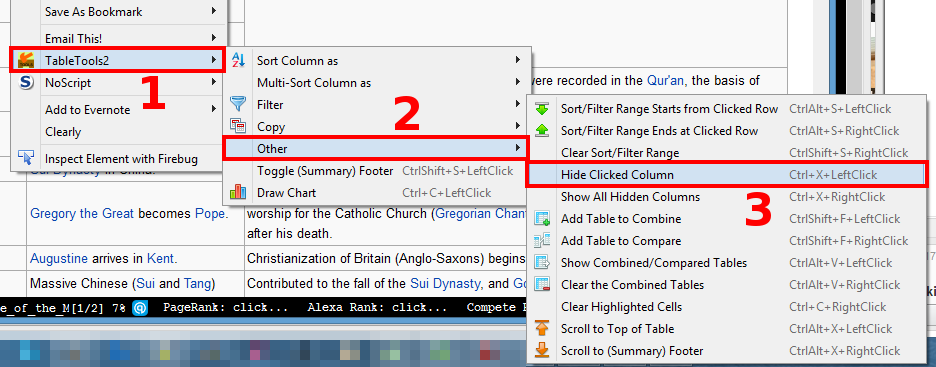
In the video, I removed to columns so that there were only two columns remaining: the fronts of the flashcards and the backs of the flashcards.
Copying the Table Data
After the table looks the way you want, right-click on the table and choose TableTools2 -> Copy -> Table As Tab-Delimited Text.
You can then paste the tab delimited text into any spreadsheet program and save it in CSV format. The resulting file should have a .csv extension.
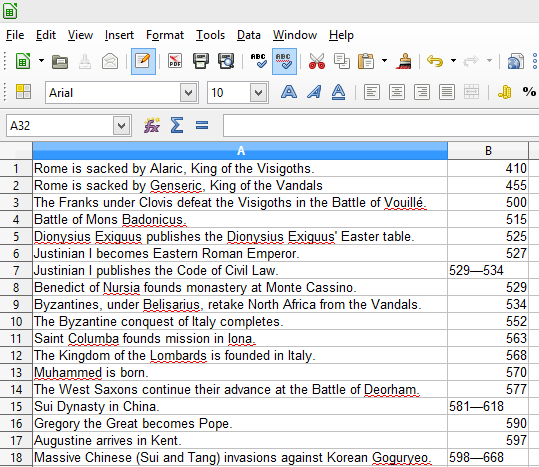
Importing the Data into Anki
Open up Anki and click Import File. Choose the CSV file that you just exported.
You can leave the default settings, but be sure that you are importing the data into the correct deck. If you haven’t already created the deck, you can do that during this step.
If you leave everything with default settings, and your spreadsheet only has two columns, the first column will be the front of your cards, and the second column will be the back of your cards.
Click the Import button, and you’re done!
Possible Uses
Here are some ideas on where to use this method:
- Foreign language vocabulary like in this example. There are word lists available online.
- History timelines
- Country data
- Sports statistics
- Trivia, such as Academy Award winners
If you have any questions or additional tips, please leave a comment below. I’d be interested to hear about any new, creative uses for this method.
Don’t forget to subscribe to the new Art of Memory YouTube channel!


